
This process is used to make data available offline so that you can also work with empower® offline. Templates and library searches also work offline.
The following data is synchronized:
- Metadata – e.g. folders, users, designs and permissions
-
Content data from the empower® Backend – e.g. templates
If an element's content data is also synchronized, it can be inserted entirely without a connection to the empower® Backend.
Write functions such as uploading an element to the empower® Library are not available offline.
If there is no connection to the empower® Sync, only elements that have been made available offline by synchronization can be opened.
For further information regarding offline and online availability, see Online Availability of Library Content.
User Interface
To access the empower® Sync, navigate to the Windowstask bar. Here, click on the empower® Icon (Figure 3).
The icon will either be displayed in the taskbar or in the context menu of the taskbar.
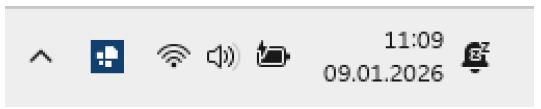
empower® Icon
Main Window
In the main window, you can see when the empower® Sync has executed the last synchronization. In addition, you can see how many files have been synchronized and what the size of this data has been (Figure 4).
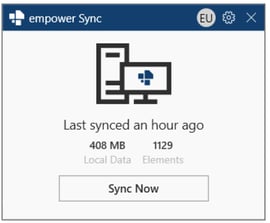
Main Window
To see the exact date and time of the latest synchronization, move your mouse cursor over the text Last synced …
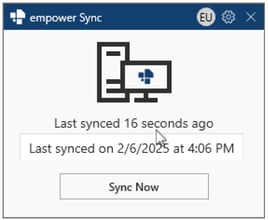
Mouse-Over Last synced
Start the Synchronization Manually
To manually initiate a synchronization, click on the button Sync Now.
The empower® Sync will then start the synchronization of any data that has changed or been added since the last synchronization and will also display a progress bar during this time.
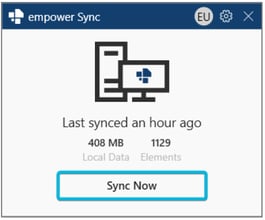
Button Sync Now
The button Sync Now can be used when you know that there has been a change which you cannot yet access because the interval for the next synchronization has not yet been reached.
Access the Sync Options
To open the empower® Sync options, click on thegear symbol in the top right corner of the main window.
A drop-down menu containing the available options opens.
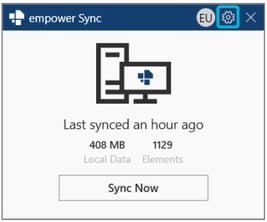
Gear Symbol
On the top of the drop-down menu, you can see which environment you are connected to. The green circle next
to the environment shows if there is a connection to the empower® Backend.
If the empower® Sync cannot establish a connection, this circle will appear in red.
To close the empower® Sync and shut down empower®, click on the option Exit (Figure 8).
To minimize the empower® Sync window, click on the X symbol in the top right corner.
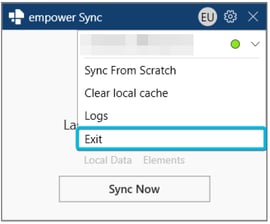
Exit Option
If you click on the button Exit, a message will appear in the window.
To confirm the process, click on the button Exit Application.
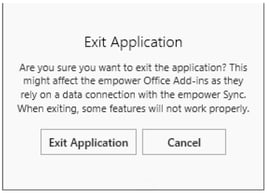
Message for Application Exit
Closing the empower® Sync via the button Exit will lead to the empower® Sync being shut down.
Some features need a connection to the empower® Sync to work properly.
If the empower® Sync is shut down, some features are still available but do not always work as
expected.
If you open the Office application again, the empower® Sync will be restarted automatically.
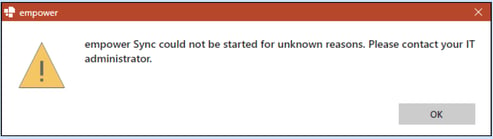
If the empower® Sync crashes unexpectedly, empower® tries to restart it. If this restart is not successful, a dialog box opens.
Error Message for SyncAlternatively, you can access the options Sync Now, Sync from Scratch, Logs and Exit via the context menu. To do so, right-click on the empower® Icon in your task bar.
Execute a Sync from Scratch
The option Sync From Scratch can be used to delete the previous synchronization metadata. The empower® Sync will start a complete synchronization afterwards.
Content data will not be deleted.
To execute this process, click on the option Sync from Scratch.
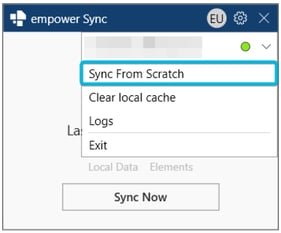
Option Sync From Scratch
This option can be used if problems occur despite synchronization or if the synchronization fails regularly.
In addition, the option can help to solve issues regarding user rights as the login data is also reset.
Clear the Local Cache
The option Clear local cache can be used to clear the cache for content data. It does not start a synchronization.
To execute this process, click on the option Clear local cache.
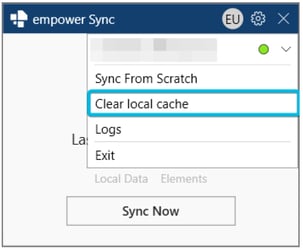
Option Clear local cache
A message appears. Read this message carefully.
To clear the cache, click on the button Clear local cache. The empower® Sync will then start clearing the
cache.
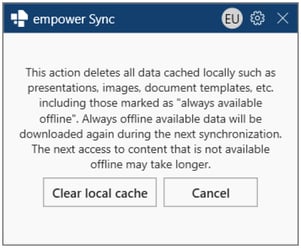
Message for Clear local cache
This option can be used to free up hard disk space after several weeks or months of working with empower®.
The next access to content that is not available offline may take longer than usual after clearing the cache, as the content must first be downloaded. This download requires a connection to the empower® Backend.
The next synchronization process can also take longer, as content data must be resynchronized.
Open the Log Files
The option Logs can be used to open the file directory in which the log files are stored.
To open the log file directory, click on the option Logs. The corresponding folder will be opened.
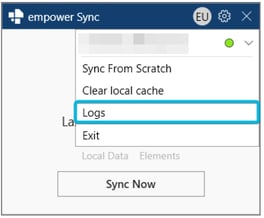
Option Logs
This option can be used if the empower® Support Team needs further information regarding the cause of unexpected problems.
User Information
Next to the gear symbol, you can see the user's initials.
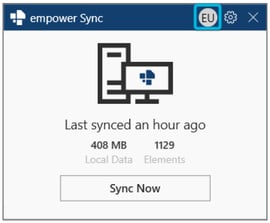
User Initials
To view the user information, click on the initials. The user's full name and the user's e-mail address will be displayed.
To log out, click on the option Sign out.
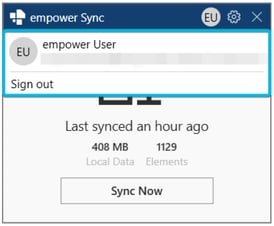
User Information
Synchronize a Specific Library Folder
If you only want to load changes in a specific library folder in PowerPoint, you can do so directly in the empower® Library.
This can be useful if a colleague has added or changed content and you know about these changes, but the next automatic synchronization has not been run yet.
To synchronize the content of a specific folder, follow the following steps:
1. Open the empower® Library.
2. Navigate to the folder that you want to synchronize.
3. Next to the path bar, click on the refresh symbol.
The folder is reloaded and all changes made since the last synchronization are displayed.
This manual partial synchronization only applies to the current folder. It does not synchronize other library content or background settings.
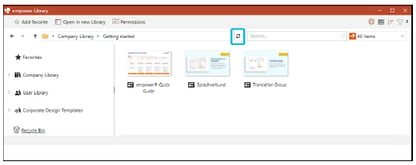
Refresh Symbol in Library
Empower Enterprise Online Manual Link: https://support.empowersuite.com/hc/en-us/articles/24052711437468-empower-Sync