The classic ribbon provides a more extensive version of the empower® Ribbon while the simplified
ribbon organizes the variety of empower® Features in more compact groups.

Classic Ribbon in PowerPoint

Simplified Ribbon in PowerPoint
Expand each drop-down menu to view more features and buttons.
Next to the empower® Features, the empower® Ribbon also includes some built-in Office features to ease the work in documents. These built-in features are not explicitly described in this manual.
For information regarding these built-in Office features, see Microsoft 365 Support.All references in the manual regarding navigation (available areas and buttons in the empower® Ribbon) refer to the simplified ribbon in empower®. The naming of features may differ slightly in the classic ribbon.
Switch Ribbon View
To switch between the classic and simplified ribbon, follow the following steps:
1. In the empower® Ribbon, click on the button Help and Settings.
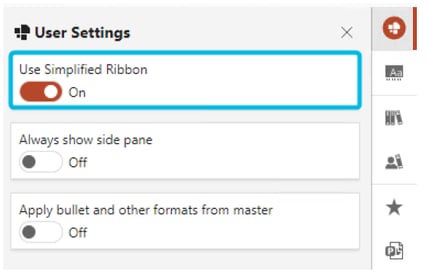
2. Choose the option User Settings. The side pane opens.
3. Depending on which ribbon you want to use, switch the toggle button for Use Simplified Ribbon to On or Off.
The ribbon changes to your preferred option.