
In addition, you can access your user settings and view information about your installation.
The help section is located in the group Extras. To view your options, click on the button Help and Settings.
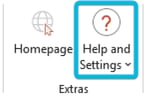 Button Help and Settings
You can choose from the following options:
▪ Help Center
▪ Tutorial Videos
▪ Send Feedback
▪ Report a Bug
▪ User Settings
▪ Customizing Center
▪ About empower
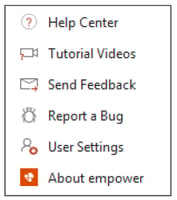 Drop-Down Menu for Button Help and Settings
Help Center
If you have any questions while working with empower®,you can open the Help Center. This will take you to the
empower® Support Website, where you will be able to find an answer either through the articles provided or through the tutorials.
The Help Center will open in your default browser.
If this does not help, you can contact the empower® Support directly by opening a new ticket at the top of the
home page and describing your problem.
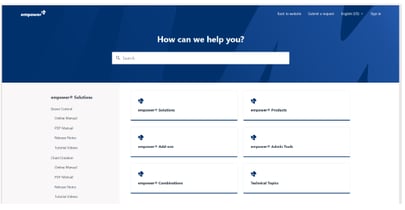 Help Center
Tutorial Videos
To check our tutorials, click on the button Tutorial Videos.
The Help Center will open in its respective section in your default browser.
If you have any questions on how to use empower®, you can watch tutorials on how to use single features.
Send Feedback
To reach out to us directly, click on the button Send Feedback.
A new window of your primary e-mail application will open, already addressed to the right recipient.
The e-mail has a preset subject line (e.g. Feedback for Slides). All feedback is welcome as we are always looking to improve our software.
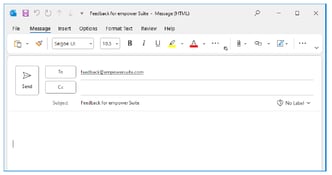 Feedback E-Mail
The e-mail draft can only be opened automatically if you use Outlook (Classic) as your default e-mail client.
Report a Bug
If you encounter any issues that might be a bug, click onthe button Report a Bug.
Clicking on the button Report a Bug will lead to creating a new e-mail via your primary e-mail application and automatically attaching a .zip file (empowerInformation.zip).
The e-mail has a preset subject line (e.g. Bug report for Slides) and is already addressed to the right recipient.
Your descriptions as well as the file attachment will help empower® replicating the error and analyzing the case to conclusively deliver a near-term solution.
User Settings
If you click on the option User Settings, the side pane opens.
In the section User Settings in the side pane, you can set your personal preferences (Figure 26).
You can decide if you want to use the classic or simplified empower® Ribbon.
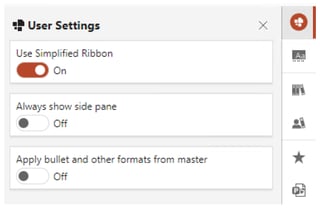 User Settings
Using the option Always show side pane, you can decide to display the side pane permanently.
If you do so, you can collapse and expand the side pane any time without selecting an element to insert beforehand.
To collapse the side pane, click on the X symbol in the upper right corner of the side pane.
To open it again, either click on the bar empower next to the sidebar or click on one of the symbols in the sidebar.
If you open the side pane via the bar empower, the side pane opens in the section that you had opened beforehand.
If you have not yet opened the side pane, it opens in the Company Library.
In addition, you can decide if you want to apply bullets and other formats from your master template in PowerPoint.
If you enable the option Apply bullet and other formats from master, empower® will use the design defaults that have been specified by your administrators for the current slide master.
This includes the font formatting and alignment in bullet lists.
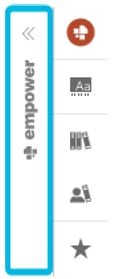 Expand Side Pane
About empower
To view detailed information about your empower® Version and the activated empower® Products, click on the button About empower.
A dialog box opens. This dialog box contains information about the empower® Version and products in use.
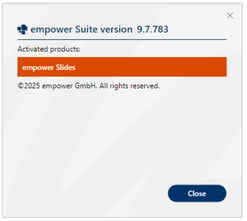 Dialog Box About empower