
The empower® Library can be accessed via the library group in the empower® Ribbon. To open the library, click on the button Library.
It opens in a new window.
Alternatively, you can access the empower® Library content via the side pane.
Library Structure
In the empower® Library, you can see the folder arrangement of the library on the left. It has been
constructed in congruence with Microsoft’s Windows Explorer.
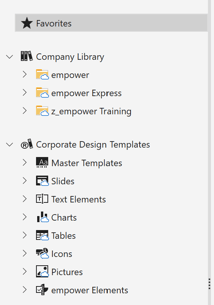 Library Structure
The empower® Library is divided into the following main sections:
▪ Favorites
▪ Company Library
▪ Corporate Design Templates
If you select a folder from the folder tree on the left, you will see all the elements stored in this folder on the right
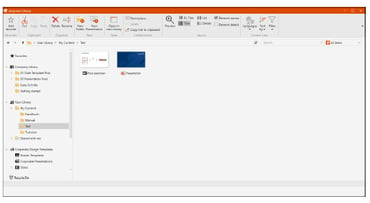 Library Window
You can tell what type of element it is by the icon in the bottom left corner of each element
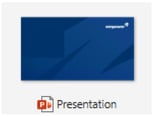 Presentation Icon
For each element, further meta information such as author, last modification date and size can also be viewed on the bottom of the library
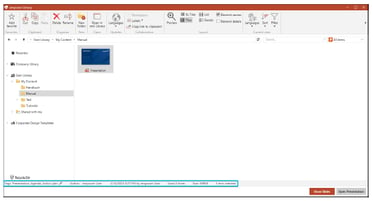 Metadata Display
In the metadata section, you can also view how often the element has been used in your company. The count
increases each time an element is inserted or opened by a user.
Via the navigation bar, you can access all actions for the folder or element that you have currently selected.
These actions can also be accessed via the context menu of each folder or element.
If there are two command buttons displayed in the empower® Library, a double-click will always execute the left button command
Favorites
You can mark folders and elements as favorites to add them to the section Favorites. This section can be used to provide a quick access to your most frequently used folders and elements.
You can add content from all sections in the empower® Library.
To mark a folder or an element as favorite, navigate to the navigation bar and click on the button Add favorite.
 Button Add favorite
To remove a folder or an element from the section Favorites, navigate to the navigation bar and click on the button Remove favourite
 Button Remove favorite
Alternatively, you can add and remove folders and elements from the section Favorites via their context menu.
If you open a folder in the section Favorites, empower® automatically navigates to the original storage location of the folder.
Company Library
The Company Library contains folders and content that have been made available for all employees.
Those are final resources that can be used immediately.
Depending on the permission distribution, you might not be able to see all folders in the Company Library.
Corporate Design Templates
Corporate Design Templates are available with different element types.
The section Corporate Design Templates contains templates for e.g. tables, slides or charts and is intended to help all employees in the company to quickly and easily create new corporate design compliant documents.
9.1. Permission Concept
In the empower® Library, users and user groups have different permissions for individual folders.
These permissions decide on whether a user can see a folder and its content and to which extend the user is allowed to edit the content.
Permission Roles
The following four types of permission roles can be assigned in the empower® Library:
▪ Folder Administrator – Folder Administrators can add, delete and modify all folder content and the folder itself
including user rights.
▪ Editor – Editors can add, delete and modify all folder content.
▪ Author – Authors can add, delete and modify all folder content they have created.
▪ Reader – Readers can read and use all folder content but cannot upload changes back to the folder.