
Body of the article. Uses paragraph text.
Text formatting
Add bold or other colours (Q for a Alicia - how can I change the font colour or font size?) as appropriate - applied from toolbar above, applied manually. Should be able to with the RTF in the toolbar above.
Don't change line spacing (you can't?)
(but you can use soft returns)
You can change the paragraph alignment, but be aware that centring can be a bit erratic sometimes.
Other formatting options (heading 3)
Heading 4 - use for subheadings
Heading 5 - use for subheadings
Heading 6 - use for even more subheadings or emphasis
Can we add more styles? (checking with Alicia - in theory yes
You can change paragraph alignment - but generally keep everything left aligned
- Can also use bullets
- but not sub-bullets? as can't define them enough? - where are these controlled? as these would be good to use if we could if we can control them more - more research required and information from Alicia (and change bullet to an en-dash)
- Numbering is also very good for step by step process
You can add symbols, super and subscript from the toolbar.
Always write empower express as empower® Express
Try to ensure each article explains a topic in:
- Text – format (with bullets or numbers to clarify and simplify). Avoid long sentences. Keep the content short and clear. Be aware that we are writing for an international audience
- Screen captures where applicable (or GIF if we can do them for more impactful visuals)
- Video where applicable to clarify
- Document links where applicable (PDFs or PPT, Word or Excel if appropriate? or best to avoid?)
- Hyperlinks can be added and will automatically change to dark blue font colour, however, also manually underline it and bold it, just to help clarify where appropriate
- You can add links to a position on the page (jump up or down), email address, file, meeting link, another article (page) or a URL or a contact form (? as a url?)
- To add a link use the link icon on the toolbar

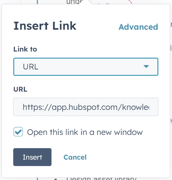

Finish each article with a note to and method for both booking a meeting or contacting us form link and insert a 'Tip Callout' box to highlight it. Avoid adding direct emails as spam bots can pick them up and send us lots of spam emails. Also useful to add is a link to the empower express sign up page (particularly on all the articles in the 'before you start' section. These links can be copied from below and should be placed in a Tip callout box.
How to create tables
Title |
Need to make it white
|
And this white and bold too |
|
Can adapt the borders and shading |
Cell width is measured by % |
And how to get rid of the odd spaces? - above text - see column 1 - not in alignment with the other rows. spacing is very inconsistent |
|
and the cell alignment and why won't my font colour change? - controlled by the format of paragraph marker below |
Can I control the cell borders more |
and only have row rather than column borders too? |
How to add links and other content
How to add a meeting link:
[xx]
Note: there are different meeting links for different types of meetings; xx xx xx
How to add a contact form link:
|
|
| e.g. Contact us | |
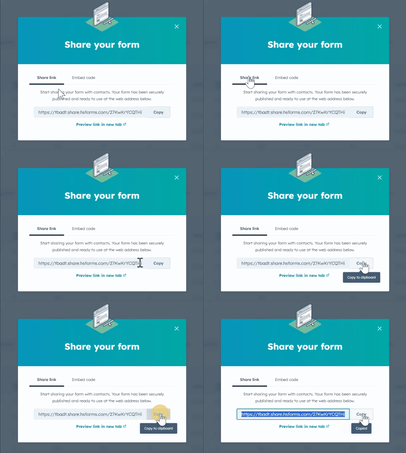


How to add a Screen capture:
- You can simply copy and paste a screen capture directly into an article.
- An alternative method is to save the capture as an image (useful if you are adding additional elements such as highlights to the image or grouping several images together). Once the image is saved (PNG is the best format), then you can use the Insert - Picture option on the Rich text toolbar to insert the image
- If you upload an image or file, these are saved in HubSpot - Content - Files.
- Delete any unnecessary images and files and save content into subfolders to ensure clarity.
How to add a GIF
GIFs are a good alternative to a screen capture to demonstrate where to click and to show how and bring attention to where. They shouldn't be too long or have too many steps. Ideally, they should only be no more than 5 seconds - for attention and also file size. The example below is too long! and 3mb!
How to create a GIF
- Record the video sequence in Loom
- Edit or trim the video (in Loom if preferred)
- Download the video
- Drag and drop into Adobe Express. The free version is fine: Adobe Express - convert to GIF
- Save as a GIF
How to add a GIF
- Click on Insert image on the Rich Text Formatting toolbar
- Upload the GIF you need (or retrieve from one of the folders if it is already uploaded)
- Select the GIF file and it is inserted.
- You can resize it using the corner sizing handles
- Ensure you file any new files in the correct folder in HubSpot - Content - Files
.gif?width=590&height=427&name=Adobe%20Express%20-%20How%20to%20insert%20a%20GIF%20(1).gif)
How to add a video:
Creating videos
There is no 'best' format necessarily for recording videos, so use what you are comfortable with. Loom is great as you can both record and host the content (and also import other videos too). The advantage over hosting our content in YouTube is that there are no adverts on Loom. It is also good for creating thumbnail images as well, so your video links can have a strong visual thumbnail as the link.
- Add a thumbnail image to you video in Loom
- Go to Share and copy the embed code
How to add document links:
Load into HubSpot first so Links always remain accessible (no limit on how much we can save)
and use PDFs generally (unless ppt training file)
How to add links to other articles (v useful to set up a learning path or embed articles into one)
[xx]
Settings options
Go through these
How to allocate to categories
Each article sits under a category.
Avoid having more than 5 articles in a category (as then they are not visible and easily found). So, consider whether any articles can be combined or whether you need an additional sub category
Go through this in a different article?
Add all the booking and contact links here
Book a call with our team to discuss your requirements further [BOOKING LINK]