
The empower® Sync is a background process that synchronizes data between the content server (where you files are hosted) and your individual instance of empower®.
Unlike programs like SharePoint, the empower® sync does not run continuously. Instead, it runs every time you restart your computer or after 8hrs of inactivity. You can also manually push a sync at any point to ensure you are seeing the latest versions of your content.
To manually run a sync
- In the Mac system tray (top right of screen) click on the empower sync icon (far left icon below)

- In this area you will see the empower icon. Click on this to launch the empower® sync window
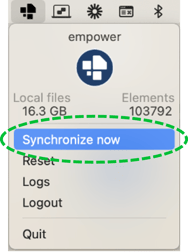
- To manually run an empower® sync select the “Synchronize Now” button
This will start the sync process and any content and changes to data that has been updated, added or deleted since the last sync will now be visible.
In the sync window, you can see when the last sync was performed and the size (and number of elements) in your accessible content.
Explainer video: Click here to watch how to run a Mac empower Sync
 Book a call or a meeting to learn how empower® Express can help you and arrange a demo
 Contact us (support@empower.express) if you have any questions
 Click here to learn more and sign up for a free trial
 Click here to book a call with our technical support team