
As you are getting started in empower® Express, it is useful to take a look at some of the user settings and preferences that you can set to ensure a personalized and more efficient experience in empower®.
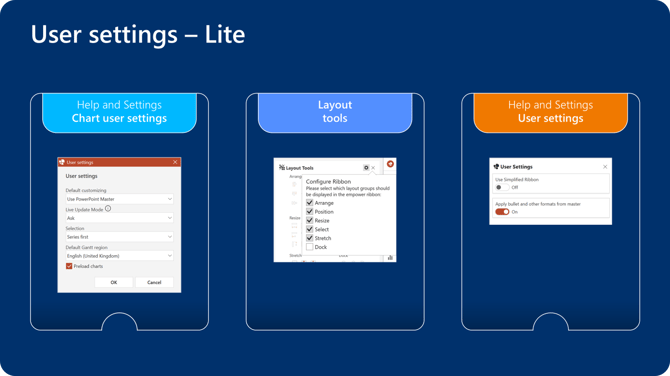
1. Help and settings - Charts User Settings
Use this tool to customize charting tool defaults:- Default customizing: uses the empower® default formats for charts (which includes using your template theme colours and fonts) but also allows you to add a customized style sheet if you have different default settings for your charts
- Live update mode: allows for automatic updates of Excel-linked charts (or options for 'Ask' or 'Inactive')
- Selection: defines what should be selected at the first click on a data series - whole series first or single point
- Default Gantt region: Sets the regional settings for newly inserted Gantt charts
- Preload charts: Automatically activates a chart when you switch to a slide. This leads to more responsive charts, but may slow down slide switching or make it tricky to select shapes on or near a chart - adjust as required
2. Layout tools - add them to your empower® ribbon or to your Quick Access Toolbar
- Open the layout tools in the side bar
- Go to the settings tool to add tool groups to the empower® ribbon
- Right hand mouse click on tools to add them to the Quick Access Toolbar
3. Help and settings - User Settings
- Switch to the 'Simplified Ribbon' for a cleaner interface
- Tick on 'Apply bullets' for template related bullets
Watch this video for more details:

 Book a call or a meeting to learn how empower® Express can help you and arrange a demo
 Contact us (support@empower.express) if you have any questions
 Click here to learn more and sign up for a free trial
 Click here to book a call with our technical support team