
-
Close PowerPoint
IMPORTANT: to ensure that PowerPoint is closed, please check that it is not listed within Task Manager > Background Processes. If listed, please select it and click on End Task.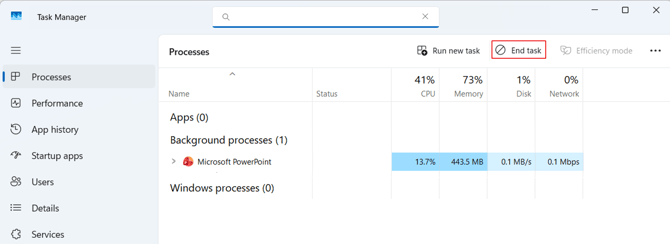
-
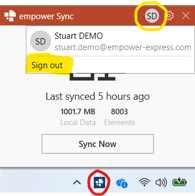
Click on the empower® sync icon in your taskbar(1) - click on your initials and then select Sign out
-
Restart PowerPoint. If prompted to log in to empower®, please use the relevant information.
After restarting PowerPoint, if the empower® ribbon is still not visible, please click here to book a support call.
(1) If the empower® sync icon is not visible in your taskbar, please first check in your Hidden icons (accessible via the  icon in your taskbar). If it is also not visible in Hidden icons, please follow the steps listed in this article.
 Book a call or a meeting to learn how empower® Express can help you and arrange a demo
 Contact us (support@empower.express) if you have any questions
 Click here to learn more and sign up for a free trial
 Click here to book a call with our technical support team