
- Firstly, please check in your Hiddon icons (accessible via the
 icon in your taskbar) as depending on the number of icons found in your tasbar, the empower® sync icon can sometimes be found here
 -
If it cannot be found in Hidden icons, please close PowerPoint
IMPORTANT: to ensure that PowerPoint is closed, please check that it is not listed within Task Manager > Background Processes. If listed, please select it and click on End Task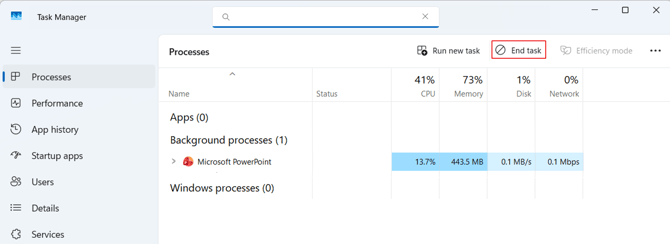
-
Restart PowerPoint at which point the empower® sync icon should automatically reappear either in your taskbar, as shown in the below screenshot, or within Hidden icons as refernced in point 1 above

-
If the empower® sync icon does not reappear,please close PowerPoint again (ensuring that it is also closed in Task Manager > Background Processes)
-
In File Explorer, copy and paste the below filepath into the address bar at the top of the Explorer window:
%localappdata%\Programs\empower\sync
- Locate and double-click on the application file entitled empowerSync.exe

- The empower® sync icon should automatically reappear either in your taskbar, as shown in the below screenshot, or within Hidden icons as refernced in point 1 above.
If the empower® sync icon is still not visible after completing the above steps, please click here to book a support call.
 Book a call or a meeting to learn how empower® Express can help you and arrange a demo
 Contact us (support@empower.express) if you have any questions
 Click here to learn more and sign up for a free trial
 Click here to book a call with our technical support team