
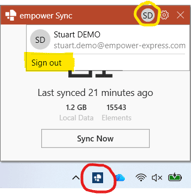
- Click on the empower® sync icon in your taskbar, click on the grey icon with your initials and select Sign out
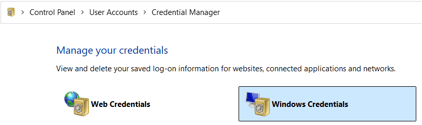
- Navigate to your computer's Credential Manager. Click on Windows Credentials
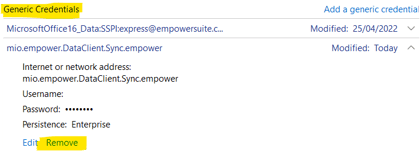
- Under Generic Credentials,expand the entry for mio.empower.DataClient.Sync.empower and then select Remove
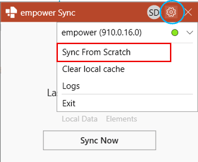
- Click on the empower® sync icon in your taskbar, click on the cog icon and select Sync from Scratch.
- Once you are notified that the sync has completed, reopen PowerPoint to test.
If the empower® remains unresponsive, please click here to book a support call.
 Book a call or a meeting to learn how empower® Express can help you and arrange a demo
 Contact us (support@empower.express) if you have any questions
 Click here to learn more and sign up for a free trial
 Click here to book a call with our technical support team