
Solution 1
-
Restart your computer. If the issue persists after doing this, please proceed to Solution 2.
Solution 2
-
Open Microsoft Excel. Click on the File menu - select Options - Add-ins
-
If empower is listed in the Active add-ins section, ensure that COM Add-ins is selected under and then click Go...
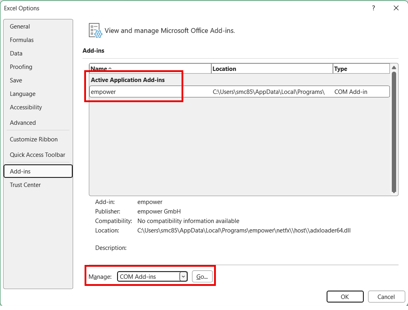
- If the checkbox for empower is not selected, select it as in the below screenshot:
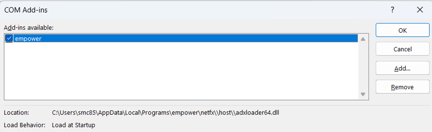
- Close and reopen PowerPoint to test. If the issue persists after doing this, please proceed to Solution 3.
Solution 3
-
Open Microsoft Excel. Click on the File menu - select Options - Add-ins
-
If empower is listed in the Inactive add-ins section, ensure that COM Add-ins is selected under and then click Go...
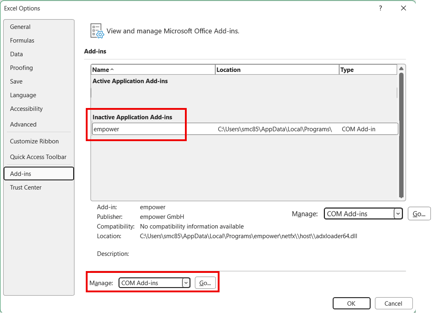
- Click the checkbox for empower to activate it
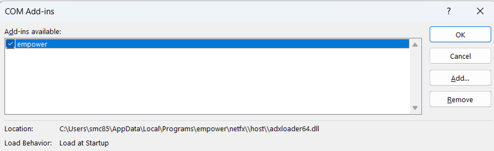
- Close and reopen PowerPoint to test. If the issue persists after doing this, please proceed to Solution 4.
Solution 4
-
Open Microsoft Excel. Click on the File menu - select Options - Add-ins
-
If empower is listed in the Disabled add-ins section, ensure that Disabled Items is selected under and then click Go...
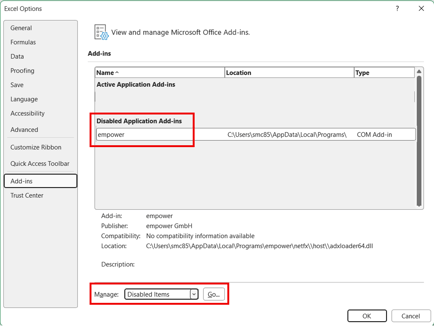
- If empower listed within the Disabled Items window ,select it and click on Enable
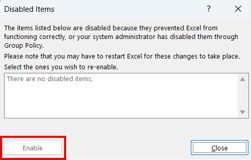
- Close and reopen PowerPoint to test.
 Book a call or a meeting to learn how empower® Express can help you and arrange a demo
 Contact us (support@empower.express) if you have any questions
 Click here to learn more and sign up for a free trial
 Click here to book a call with our technical support team