
Uploading content is quick and easy
|
|
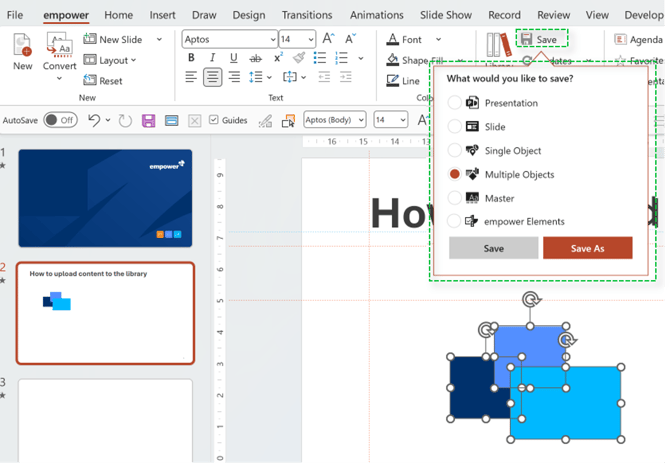
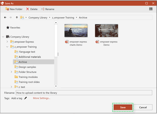
Watch this video for more detail on how to upload content in empower®:

 Book a call or a meeting to learn how empower® Express can help you and arrange a demo
 Contact us (support@empower.express) if you have any questions
 Click here to learn more and sign up for a free trial
 Click here to book a call with our technical support team