
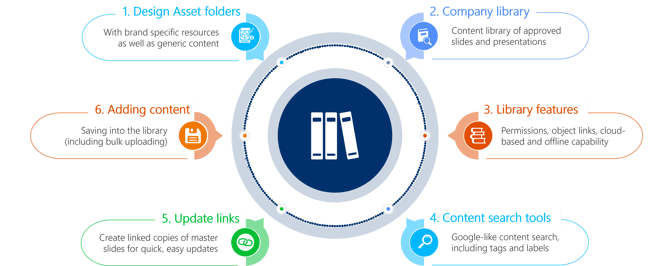
Within empower® Express, there is a very useful library function where you can build a resource that is easily and visually accessible directly in PowerPoint, that is easy to deploy, easy to update and easy to access.
empower® has a number of tools and features that make creating presentations quick, easy, reliable and always on brand.
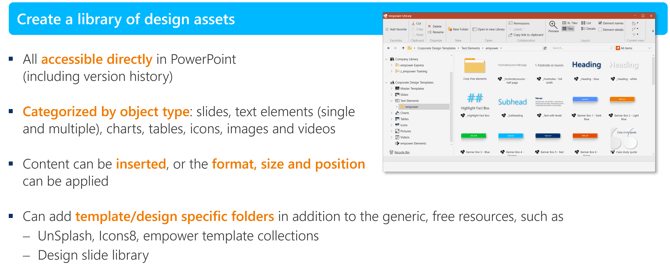
Brand asset library – Corporate Design Templates folders |
|
|
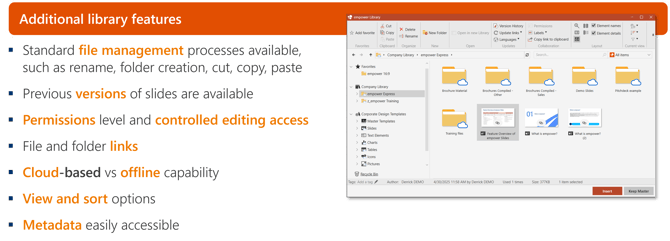
Create a library of bespoke design resources, categorised by object type: pre-built slides, text elements, charts, tables, icons, images and videos all searchable and available on one click. |
 |
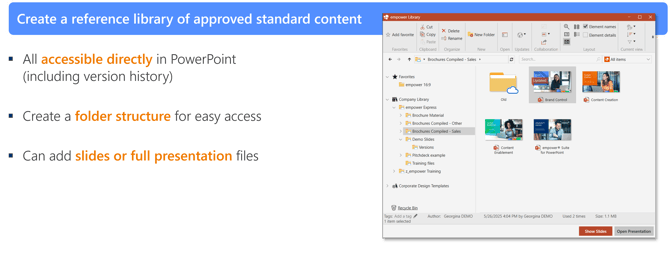
Company content library |
|
|
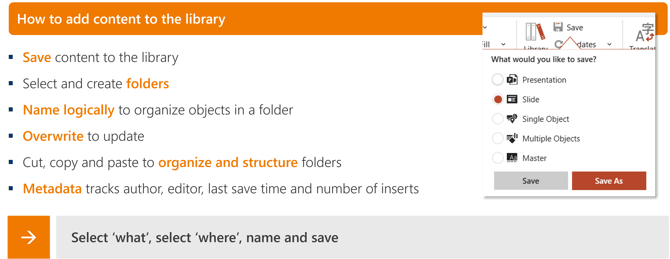
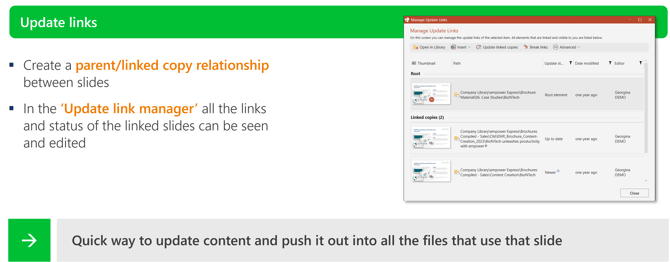
Create a library of approved standard content, so users can be sure of finding the most up-to-date marketing and company resources. As with the design assets - it is all easily searchable, easy to organise and permission. Users can access full presentations as well as single slides. Set up slide links to make updating quick and easy |
 |
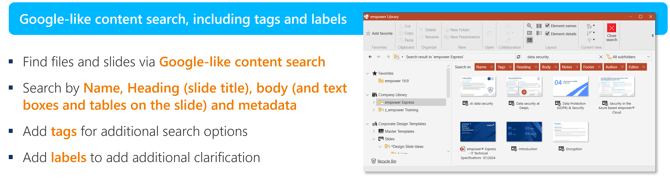
Library features, search, update links, adding content |
|
|
|
 |
|
|
 |
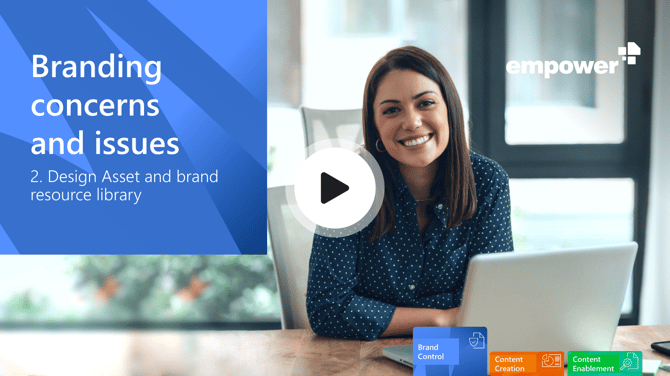
Watch this video for more details on how to use empower® tools to create and use a branding resource and design assets library to make document creation, quick, easy and on brand.
 Book a call or a meeting to learn how empower® Express can help you and arrange a demo
 Contact us (support@empower.express) if you have any questions
 Click here to learn more and sign up for a free trial
 Click here to book a call with our technical support team