
When you start working with empower®, we will implement your template and design, so you can fully leverage the formatting and branding tools, ensuring your work is always efficient, effective and consistently aligned to your brand.
How to implement your template and brand.
As the empower® Express platform is a shared space, in order to protect client confidentiality and data integrity, saving your template to the library is handled directly by our admin team.
This process is completed at no extra cost and typically takes no more than 1-2 business days.
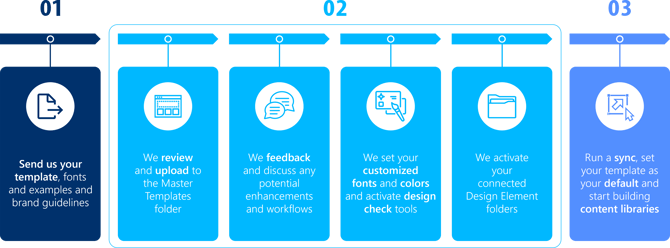
Step 1
-
Email us your template (support@empower.express) and/or any design and branding files, such as fonts, logo files, examples and style guidelines.
-
If you don't have a template, set up a call with our presentations design team who can design and build one for you, as well as design elements and content libraries.
Step 2
-
Our design team will review your template and brand files and will upload it to the library.
-
We will discuss any potential enhancements and ensure that it is aligned with your brand and output.
-
We also set your customized approved fonts and approved colours. Note: these changes feed into the formatting, conversion and design check tools)
-
We activate your design element folders so you can create libraries of design elements and slide templates for quick and easy slide creation
Step 3
-
Once your template and design is set up (typically takes 1-3 working business days), we will contact you and advise you to run a sync to see the newly customised set up
Note: this process is all carried out as part of your subscription, at no extra cost.
Additional templates can be added at any time as your brand and design evolve (at no additional cost).
Email us (support@empower.express) to discuss or send through your requirements.
Watch this video for a walkthrough of the process and how to maximise your experience with empower® by adding your design and branding templates

 Book a call or a meeting to learn how empower® Express can help you and arrange a demo
 Contact us (support@empower.express) if you have any questions
 Click here to learn more and sign up for a free trial
 Click here to book a call with our technical support team