Skip to content
  • There are no suggestions because the search field is empty.

Sharing slides with the Send and Share tool

Learn how to quickly extract, format, and send individual slides or entire presentations directly from PowerPoint without interrupting your workflow.

The Send and Share tool is very useful to circulate content as PowerPoint files or slides or as PDFs. With the tool, you can choose to send a full presentation, or just selected slide(s).

To use the tool:
  1. Open your file and select the required slides 

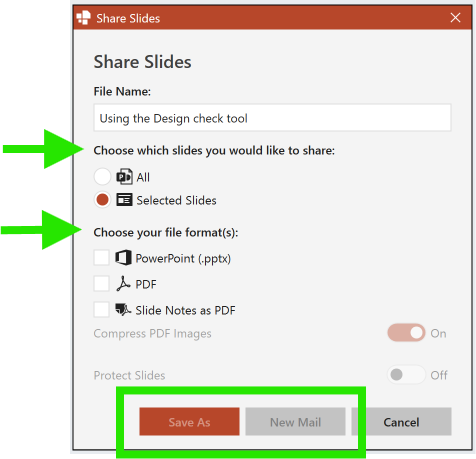
  2. Click on Finalize - Share Slides to open the Share Slides dialogue box

    • The tool automatically guesses the file name from the presentation title.

    • The name can be changed if needed.

    • This name is used for the saved file name or for the email info line/subject area.

  3. Choose what you want to send or save:
    • The whole file or,
    • Selected slides only (or a slingle selected slide)
  4. Choose the output format and options
    • PowerPoint
    • PDF
    • Both
    • You can also include notes pages if needed and decide whether to compress images
  5. Choose whether to save or send the slides
  6. Review the generated email and press send.


send and share slides screenshot


Notes: The tool opens your connected email client and the extracted slide files are attached automatically.


Watch this video to see how the tool works:

Tools guide - Send and share slides


ICON Block  meeting  Book a call or a meeting to learn how empower® Express can help you and arrange a demo

ICON Block email blue  Contact us (support@empower.express) if you have any questions

ICON Block website Blue  Click here to learn more and sign up for a free trial

ICON Block tech support  Click here to book a call with our technical support team